> ## Documentation Index
> Fetch the complete documentation index at: https://upstash-fix-issues-on-docs.mintlify.site/llms.txt
> Use this file to discover all available pages before exploring further.
# Vercel - Upstash Redis Integration
If you are using [Vercel](https://vercel.com/) then you can integrate Upstash
Redis, Kafka or QStash to your project easily. Upstash is the perfect serverless
solution for your applications thanks to its:
* Low latency data
* Per request pricing
* Durable storage
* Ease of use
Below are the steps of the integration.
### Add Integration to Your Vercel Account
Visit the [Upstash Integration](https://vercel.com/integrations/upstash) on
Vercel and click the `Add Integration` button. Choose your scope and application
that you want to integrate.
### Select Your Project
Vercel will redirect you to Upstash, where you can select your Vercel project
and Upstash resources that you want to integrate.
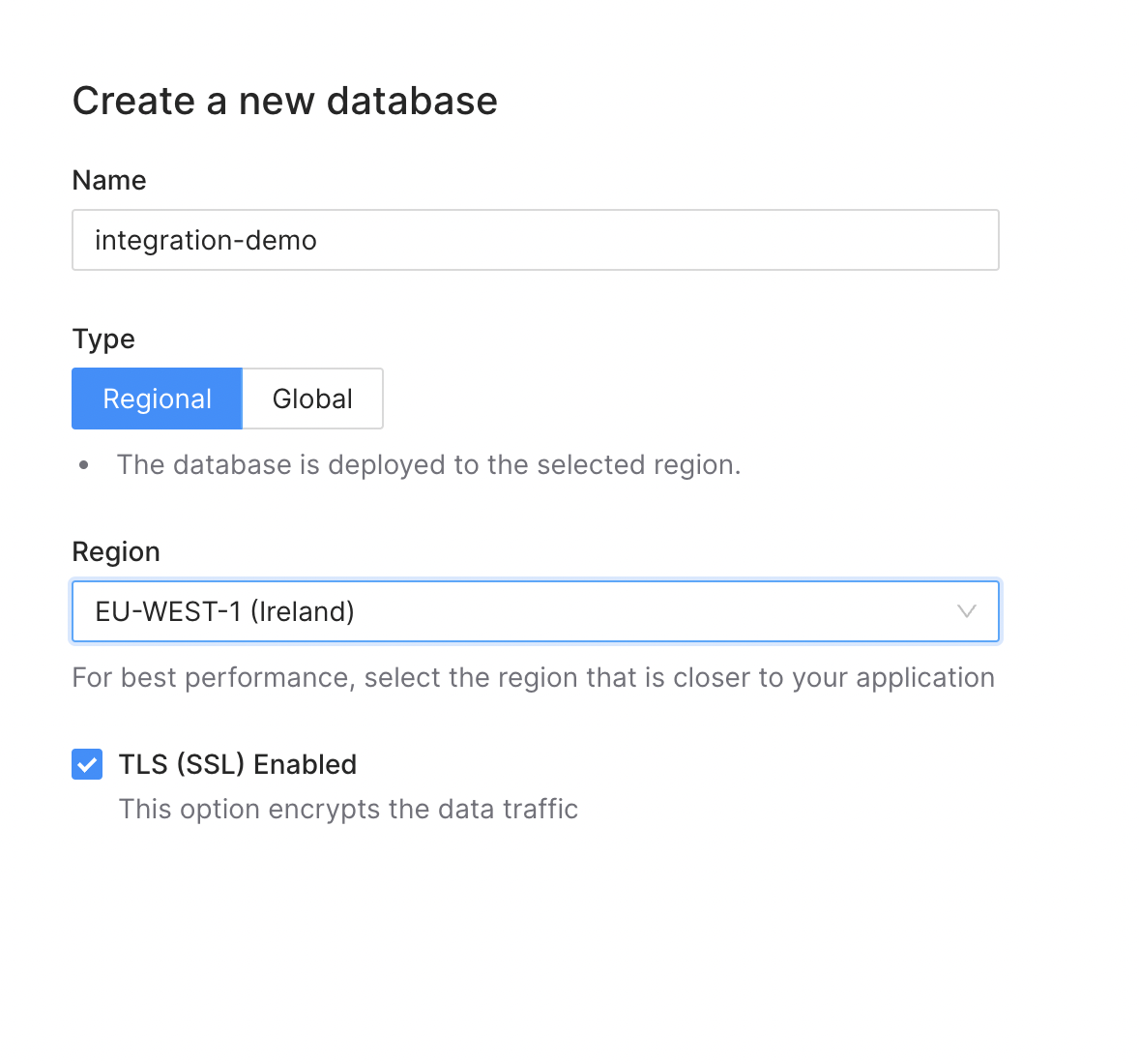
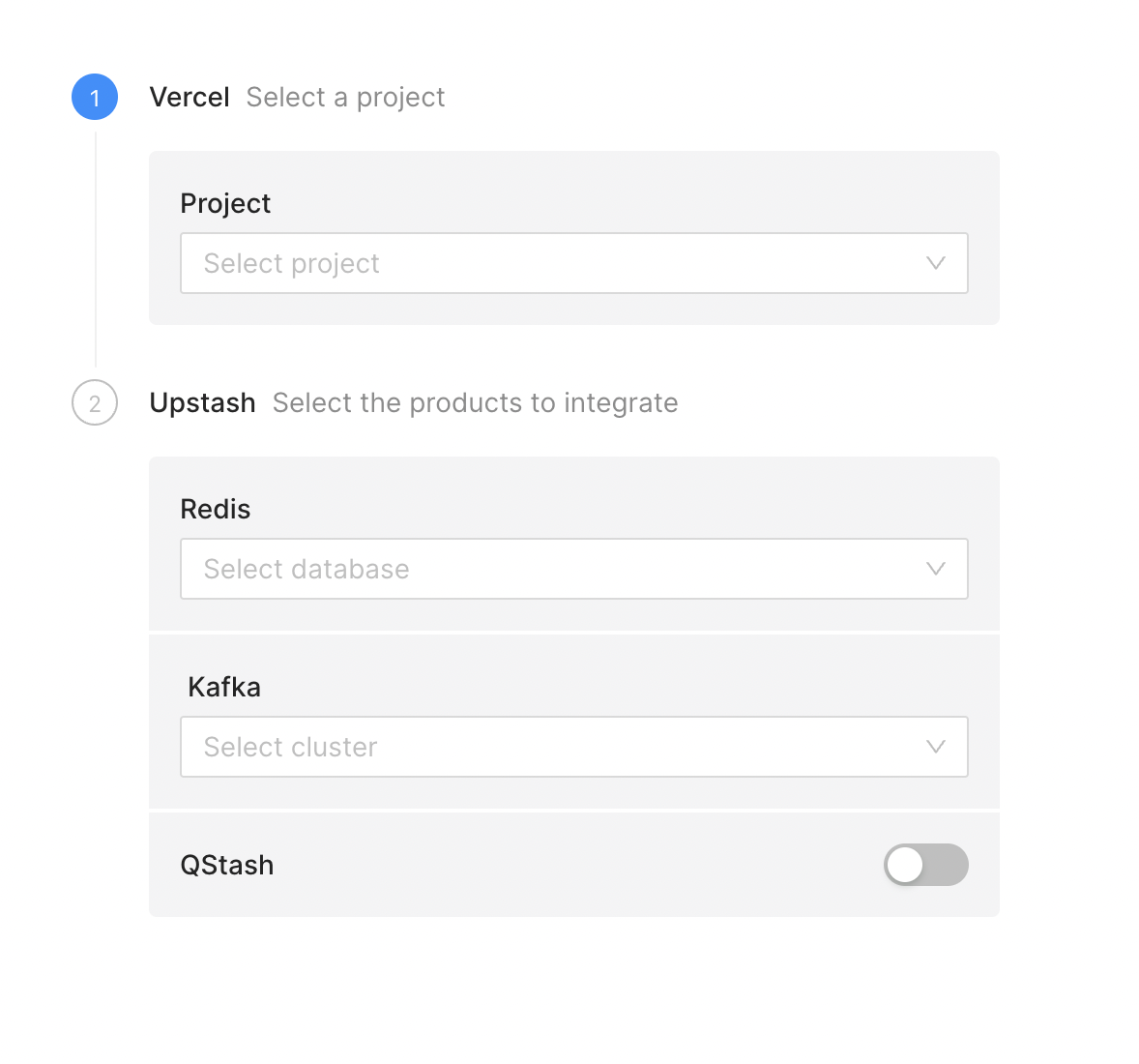 If you do not have a Redis database or Kafka cluster yet, you can create one
from the dropdown menu.
If you do not have a Redis database or Kafka cluster yet, you can create one
from the dropdown menu.
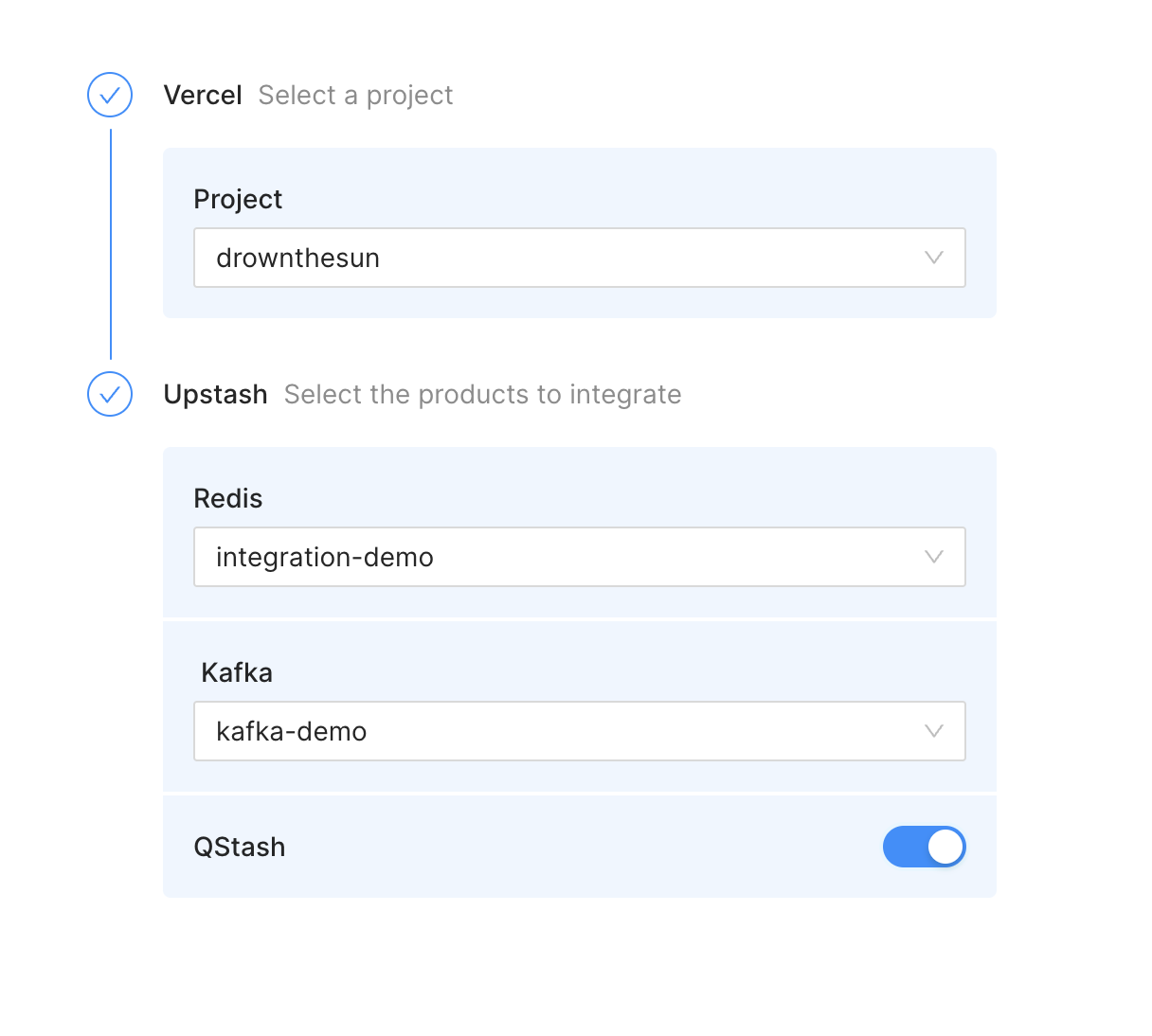
 Once you have selected all resources, click the `Create` button at the bottom of
the page.
Once you have selected all resources, click the `Create` button at the bottom of
the page.
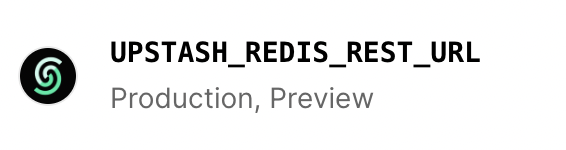
 After all environment variables are created, you will be forwarded to Vercel. Go
to your project settings where you can see all added environment variables.
Depending on the resources you selected, you will see something similar to this:
After all environment variables are created, you will be forwarded to Vercel. Go
to your project settings where you can see all added environment variables.
Depending on the resources you selected, you will see something similar to this:
 You need to redeploy your app for the environment variable to be used.
### Create Your Redis Client
If you completed the integration steps above and redeploy your app, the added
environment variables will be accessible inside your Vercel application. You can
now use them in your clients to connect
#### Redis
```ts
const { Redis } = require("@upstash/redis");
module.exports = async (req, res) => {
/**
* Redis.fromEnv() will read the following from environment variables:
* - UPSTASH_REDIS_REST_URL
* - UPSTASH_REDIS_REST_TOKEN
*/
const redis = Redis.fromEnv();
await redis.set("foo", "bar");
const bar = await redis.get("foo");
res.json({
body: `foo: ${bar}`,
});
};
```
#### Kafka
```ts
import { Kafka } from "@upstash/kafka";
const kafka = new Kafka({
url: process.env.UPSTASH_KAFKA_REST_URL,
username: process.env.UPSTASH_KAFKA_REST_USERNAME,
password: process.env.UPSTASH_KAFKA_REST_PASSWORD,
});
await kafka.producer().produce("my-topic", "my-message");
```
#### QStash
**Client**
```ts
import { Client } from "@upstash/qstash";
const c = new Client({
token: process.env.QSTASH_TOKEN,
});
const res = await c.publishJSON({
url: "https://my-api...",
body: {
hello: "world",
},
});
```
**Receiver**
```ts
import { Receiver } from "@upstash/qstash";
const r = new Receiver({
currentSigningKey: process.env.QSTASH_CURRENT_SIGNING_KEY,
nextSigningKey: process.env.QSTASH_NEXT_SIGNING_KEY,
});
const isValid = await r.verify(
signature: "..."
body: "..."
})
```
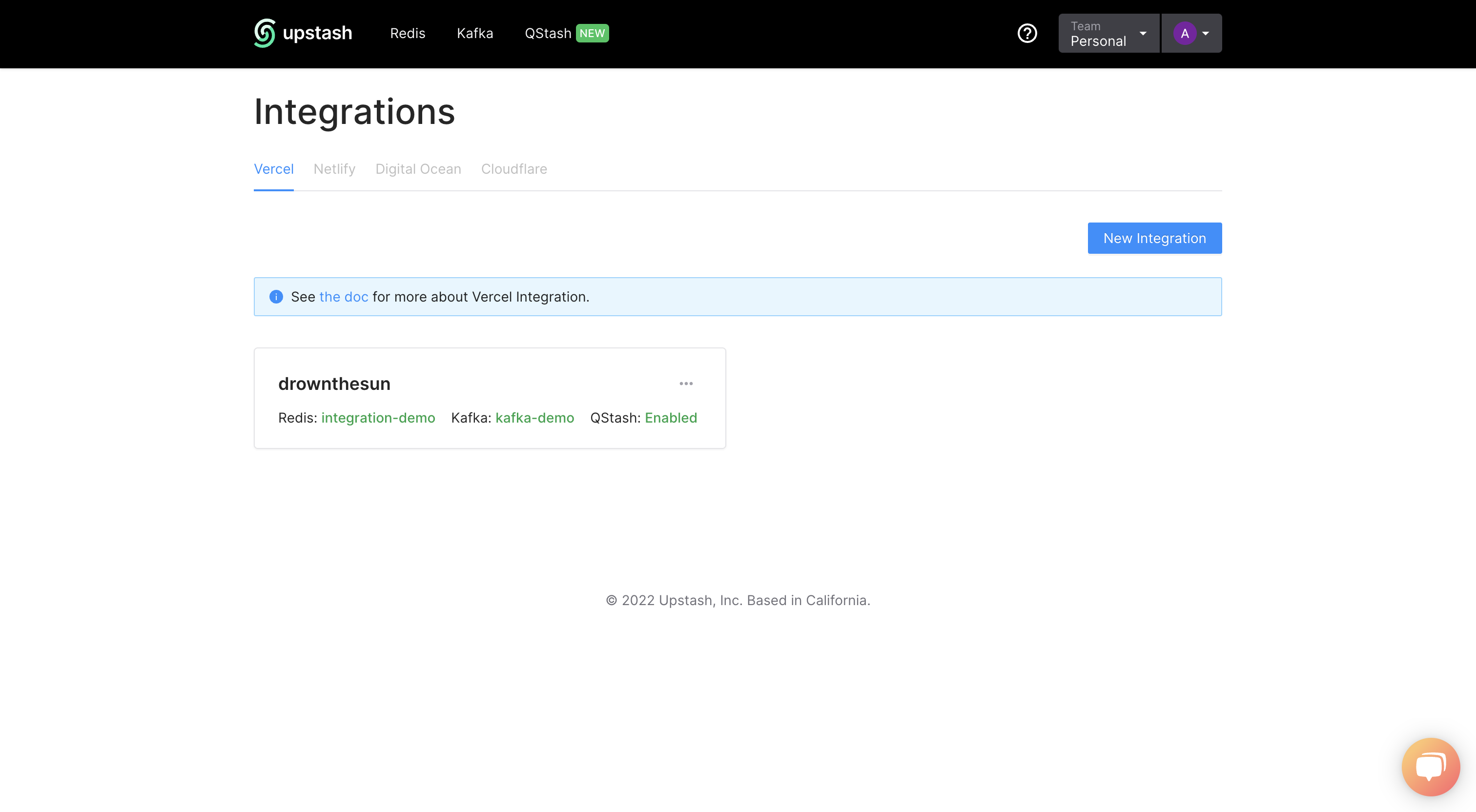
### Managing your Integrations
The [Integration Dashboard](https://console.upstash.com/integration/vercel)
allows you to see all your integrations, link new projects or manage existing
ones.
You need to redeploy your app for the environment variable to be used.
### Create Your Redis Client
If you completed the integration steps above and redeploy your app, the added
environment variables will be accessible inside your Vercel application. You can
now use them in your clients to connect
#### Redis
```ts
const { Redis } = require("@upstash/redis");
module.exports = async (req, res) => {
/**
* Redis.fromEnv() will read the following from environment variables:
* - UPSTASH_REDIS_REST_URL
* - UPSTASH_REDIS_REST_TOKEN
*/
const redis = Redis.fromEnv();
await redis.set("foo", "bar");
const bar = await redis.get("foo");
res.json({
body: `foo: ${bar}`,
});
};
```
#### Kafka
```ts
import { Kafka } from "@upstash/kafka";
const kafka = new Kafka({
url: process.env.UPSTASH_KAFKA_REST_URL,
username: process.env.UPSTASH_KAFKA_REST_USERNAME,
password: process.env.UPSTASH_KAFKA_REST_PASSWORD,
});
await kafka.producer().produce("my-topic", "my-message");
```
#### QStash
**Client**
```ts
import { Client } from "@upstash/qstash";
const c = new Client({
token: process.env.QSTASH_TOKEN,
});
const res = await c.publishJSON({
url: "https://my-api...",
body: {
hello: "world",
},
});
```
**Receiver**
```ts
import { Receiver } from "@upstash/qstash";
const r = new Receiver({
currentSigningKey: process.env.QSTASH_CURRENT_SIGNING_KEY,
nextSigningKey: process.env.QSTASH_NEXT_SIGNING_KEY,
});
const isValid = await r.verify(
signature: "..."
body: "..."
})
```
### Managing your Integrations
The [Integration Dashboard](https://console.upstash.com/integration/vercel)
allows you to see all your integrations, link new projects or manage existing
ones.
 ### Support
If you have any issue you can ask in our
[Discord server](https://discord.gg/w9SenAtbme) or send email at
[support@upstash.com](mailto:support@upstash.com)
### Support
If you have any issue you can ask in our
[Discord server](https://discord.gg/w9SenAtbme) or send email at
[support@upstash.com](mailto:support@upstash.com)